
I.T. Services / Help Desk
The Department of I.T. provides:
- Technology help for students and employees with email, StarID, campus wireless network access, and general D2L questions.
- Technology maintenance for classrooms, computer labs, campus drop-in spaces, hallway monitors, and offices.
- Support initiatives to improve technology, its use, and its service across the campus.
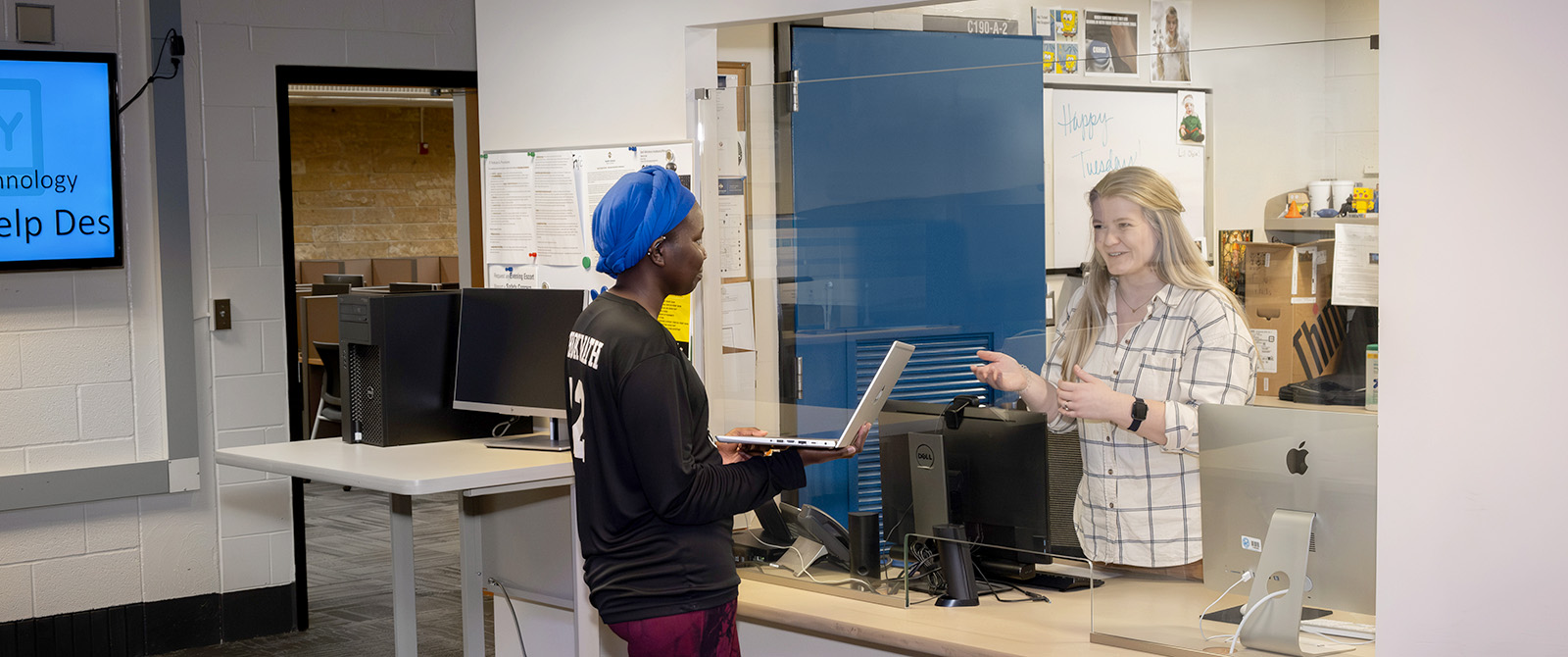
SCC's Technology Help Desk is your first point of contact for IT Services. There are many ways to ask for help.
- Help Desk / Computer Lab, North Mankato campus — C190:
Monday – Thursday, 7:30 a.m. – 8:00 p.m.
Friday, 7:30 a.m. – 4:00 p.m. - Faribault campus — A109B:
Mondays & Thursdays, 8:00 a.m. – 2:30 p.m. - Phone or email support:
(507) 389-7280 or helpdesk@southcentral.edu
Monday – Thursday, 7:00 a.m. – 8:00 p.m.
Friday, 7:30 a.m. – 4:00 p.m.
Student Info
- Student account provisioning timeline — when you gain login access to products and services offered by SCC.
- Student email login instructions
- Cloud File Storage
- StarID Help
- Selecting a computer for college
- Wifi on campus
- Microsoft Office Installation Instructions (PDF)
- LinkedIn Learning
- Student account de-provisioning timeline — when access is removed after you leave SCC.
Employee Info
- Employee account provisioning timeline — when you gain login access to products and services offered by SCC.
- Employee email instructions
- Supported computers (PDF)
- WiFi on campus
- LinkedIn Learning
- Employee account de-provisioning timeline — when access is removed after you leave SCC.
I forgot my StarID / StarID password. How do I reset it?
Go to StarID Self-Service online and click on the related option. Use your TechID or personal email address.
If you don't know your security questions, your SSN isn't recognized, or you don't have access to the email address on file, contact the IT Help Desk and we'll generate a verification code for you after confirming your identity with photo ID over Zoom or in person. Note: SCC does not keep library cards on file for StarID Self-Service.
How do I connect my device to WiFi?
Connect all personal devices to SCC Public WiFi. You can find more information on WiFi connections on our Wireless Network Access page.
How do I access my print code?
- Ensure you have clicked “Print” from a South Central College computer. After selecting the Secure Print option, you will receive an email from Uniflow to your South Central College email account.
- Search your South Central College email for Uniflow.
- Log in to a South Central College computer, go to the Print Management website, click Windows Authentication, and use your StarID to authenticate.
- Click on Account Management; your code is the TIC (a 5-digit number).
Can I install Microsoft Office for free on my personal computer?
All permanent-status employees and current students have access to Microsoft Office for free on up to 5 devices. Please reference our online directions and account provisioning timelines for more details.